I’ve been working with the SoMo by SonicWear, a cool little device that generates sound through movement, and I had some input into its design. SonicWear is a Toronto-based startup, and the project itself originated with Loretta Faveri at OCAD University’s Social Body Lab.

The main target platform for SoMo is Max/MSP on a Mac, but I was interested in using SoMo in other platforms, notably FL Studio in Windows. So I set out to adapt SoMo into a more general-purpose MIDI controller that could be used with any music software, using some freely available tools.
The main ingredients are:
- My custom code for the SoMo (Arduino compatible) – this is for V4.0 of the device, and the accompanying XBee profile.
- The amusingly named “Hairless MIDI Bridge“.
- (For Windows) The “loopMIDI” virtual MIDI loopback cable application.
Read on for details.
Part 1: Arduino Code
SoMo is compatible with the Arduino Leonardo, so you can reprogram it using the standard Arduino IDE.
- Download my sketch (code) from here. You’ll see this initial version only works with the accelerometer (x/y/z axes), but it can be extended to incorporate the gyro and magnetometer easily enough.
- Load the sketch into the Arduino IDE.
- Ensure you have the SoftwareSerial, i2c, and MPU6050 libraries imported.
- Plug in the SoMo to your computer with the USB cable. It should appear on a virtual COM port – Check that you have the right one selected in the Arduino IDE.
- Select “Arduino Leonardo” as the target board.
- Upload the code, and confirm there are no errors.
- Unplug the SoMo.
Part 1a: XBee Programming
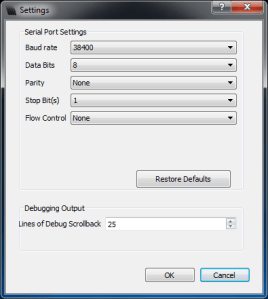
- Configure both XBees to 38,400 baud, 8 Data bits, No Parity, 1 Stop bit, no flow control. (In theory this will allow bidirectional communication with the SoMo, which could be useful for feedback or remote configuration in future.)
- To do this, you can use Digi’s X-CTU software to load my predefined XBee Profile.
Part 2: loopMIDI (Windows Only)
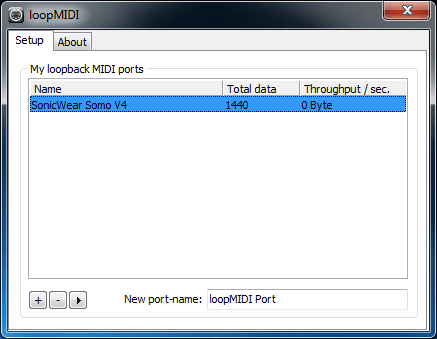
- Download and install the “loopMIDI” virtual MIDI loopback cable application.
- Run it, and create a new virtual port called “SonicWear SoMo V4”.
- This creates a virtual MIDI port that can be accessed by name from your music software.
Part 3: Hairless MIDI Bridge
- Download the Hairless MIDI Bridge version for your Operating System and run it.
- Under File->Preferences, under Serial Port Settings, make sure the settings match those of the XBee above.
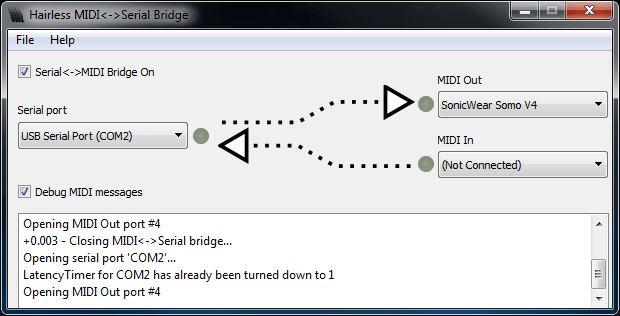
- Ensure “Serial<->MIDI Bridge On” is selected.
- Select the COM port (or ttyS port for Mac/Linux) that the receiver XBee is connected to.
- (For Windows) Select the “SonicWear SoMo V4” under MIDI Out. (I’ve not tested this setup on a Mac or Linux. If you have, please leave a comment with the port you should use!).
- Switch on the SoMo.
- You should see data streaming in the Debug window, with green LEDs flashing several times a second.
You’re done!
Load up your music software and activate the “SonicWear SoMo V4” port as an input. You should see data appearing in the following Continuous Controllers:
- CC #20: Accelerometer X (These include gravity, so you can use them to sense SoMo’s angle.)
- CC #21: Accelerometer Y
- CC #22: Accelerometer Z
- CC #23: Accelerometer Magnitude (Gravity removed)
- CC #24: Gyroscope X
- CC #25: Gyroscope Y
- CC #26: Gyroscope Z
- CC #27: Magnetometer X
- CC #28: Magnetometer Y
- CC #29: Magnetometer Z
Move the SoMo around (or start dancing!) From here, you can map the CC’s to filters, pitch bend, etc. and/or extend the code to possibly generate MIDI notes based on different thresholds. It’s up to you!
Please share your creations!
Update: The additional CCs for Gyro and Magnetometer have been implemented now.
 Leif Bloomquist
Leave a comment